Since migrating from Google Photos to Immich, I’ve been steadily reclaiming the features I actually used. One of the most glaring omissions was the ability to use my Google Nest Hub as a dynamic photo frame.
I wanted a hands-off pipeline: I add a photo to a specific “Display” album, and it appears on my Hub automatically. No manual casting, no login screens, and no “Ambient Mode” timeouts. Here is how I built it.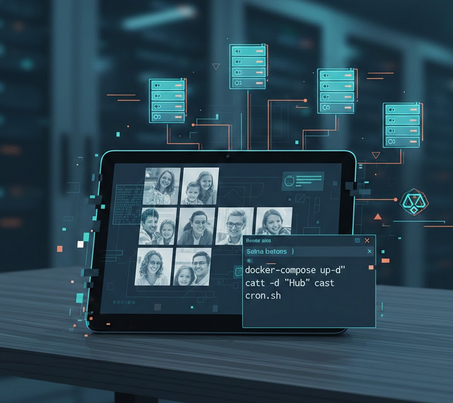
The Stack
- Immich Server: The source of truth.
- Immich-Kiosk: A lightweight web interface for slideshows.
- CATT (Cast All The Things): The CLI tool that forces the Nest Hub to open a URL.
- Cron: The heartbeat that keeps the display alive.
Step 1: The Automation Engine
If you want your display album to update itself based on specific people or tags, you can use immich-person-to-album. First, ensure your data directory has the correct permissions for the container user (UID 1000):
mkdir -p /docker/immich/person-to-album-data
sudo chown -R 1000:1000 /docker/immich/person-to-album-data
In the docker-compose.yml, I use the CONFIG: | map format for this specific tool to avoid YAML parsing errors with the nested JSON:
  immich-person-to-album:
    image: alangrainger/immich-person-to-album:latest
    container_name: immich-person-to-album
    restart: always
    networks:
      - immich
    volumes:
      - ./person-to-album-data:/data
    environment:
      CONFIG: |
        {
          "immichServer": "http://immich-server:2283",
          "schedule": "*/30 * * * *",
          "users": [
            {
              "apiKey": "YOUR_API_KEY",
              "personLinks": [
                { "description": "Display Photos", "personId": "UUID", "albumId": "TARGET_ALBUM_UUID" }
              ]
            }
          ]
        }
Step 2: Deploying the Kiosk
The Nest Hub needs a clean, full-screen URL. While environment variables are an option, I found mounting a config volume much cleaner for managing a complex kiosk setup.
First, I created a local directory for the config and populated a config.yaml based on the official documentation:
mkdir ./immich-kioskimmich-kiosk/config.yaml snippet:
immich_url: "http://immich-server:2283"
immich_api_key: "YOUR_API_KEY"
albums:
  - "TARGET_ALBUM_UUID"
# Add other preferences like duration, themes, or clock overlays here
Then, I updated the service in my docker-compose.yml:
  immich-kiosk:
    image: ghcr.io/damongolding/immich-kiosk:latest
    expose:
      - 8080
    volumes:
      - ./immich-kiosk:/config
    environment:
      - VIRTUAL_HOST=immich-kiosk.domain.com
      - VIRTUAL_PORT=8080
    networks:
      - immich
      - nginx-proxy
    depends_on:
      immich-server:
        condition: service_started
Step 3: Hardening the Health Checks
I swapped the default health check for a robust wget ping directly in the immich-server block:
    healthcheck:
      test: ["CMD-SHELL", "wget --quiet --tries=1 --spider http://localhost:2283/api/server/ping || exit 1"]
      interval: 30s
      timeout: 10s
      retries: 3
      start_period: 30s
Step 4: Forcing the Cast
Google Nest Hubs don’t have a browser you can just “open.” I use CATT to force-push the Kiosk URL to the device.
pip3 install catt
catt -d "Kitchen Display" cast_site "https://immich-kiosk.domain.com"
Step 5: The “Keep-Alive” Heartbeat
Nest Hubs will return to the clock if someone uses it for a broadcast or home control. To fix this, I wrote a simple bash script to check the Hub’s status and recast if it’s not “PLAYING.”
recast_immich.sh:
#!/bin/bash
STATUS=$(catt -d "Kitchen Display" status)

if [[ $STATUS != *"PLAYING"* ]]; then
    catt -d "Kitchen Display" cast_site "https://immich-kiosk.domain.com"
fi
I added a 10-minute cron job to run this heartbeat:
*/10 * * * * /bin/bash /home/user/recast_immich.shThe Result
The setup is now fully autonomous. I add a photo to the album (or let the automation tool do its job), and the Hub updates within minutes. It’s a clean, privacy-focused solution that finally makes the Nest Hub feel like a piece of my own infrastructure.